

Automated cloud backups keep digital files safe, recoverable, and protected from unexpected loss.
Online backup tools have become essential as digital devices store more of our personal and professional lives than ever before. Laptops now hold work projects and financial records, smartphones store years of photos and messages, and cloud apps manage daily communication. Despite this dependence, data loss remains common, often happening without warning.
A failed system update, a broken hard drive, a stolen phone, or a ransomware attack can instantly erase access to important files. Online backup tools are built for these moments. Their value is not theoretical—they prove their worth when data needs to be recovered quickly and reliably. This article explains, in practical terms, how online backup tools protect data from loss and how recovery actually works on Windows, macOS, and iPhone devices.

Why Data Loss Happens More Often Than People Expect
Data loss rarely happens because of dramatic events alone. More often, it occurs during routine use. Storage drives wear out over time. Files are overwritten accidentally. Operating system updates fail. Devices are dropped, lost, or stolen.
Cyber threats have increased the risk further. Ransomware can lock users out of their own files, while malware may quietly corrupt data in the background. In many cases, users only realize how vulnerable their data was after it disappears.
Online backup tools exist to reduce the impact of these everyday failures by ensuring data can be restored even when the original device cannot be trusted.
What Online Backup Tools Actually Do
Online backup tools continuously copy files from a device and store them securely on remote servers. These servers are designed for redundancy, meaning multiple copies of the same data exist in different locations.
Unlike simple cloud storage used for sharing files, backup tools focus on recovery. Their purpose is not just access, but restoration—returning data to a usable state after something goes wrong.
Most online backup tools run automatically in the background once configured, updating files without requiring constant user attention.
How Data Is Recovered on Windows Using Online Backup Tools
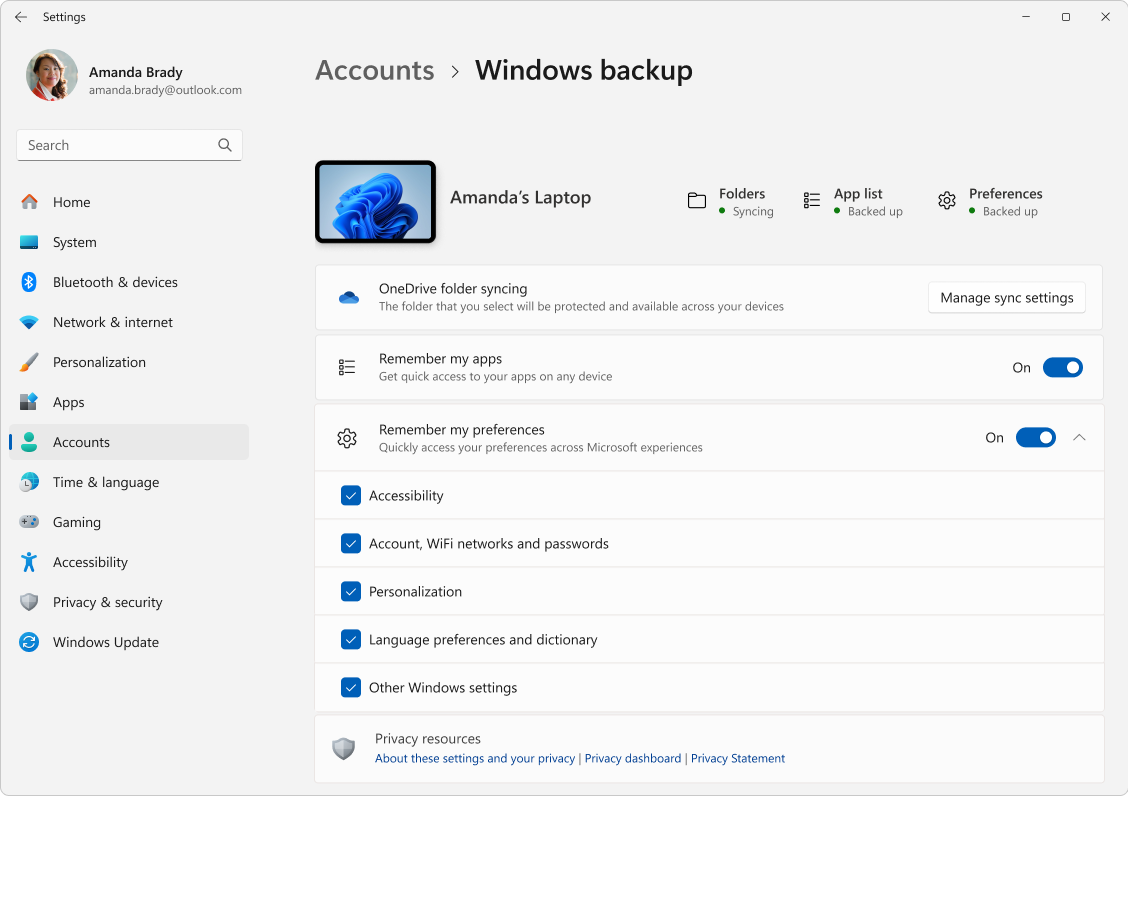
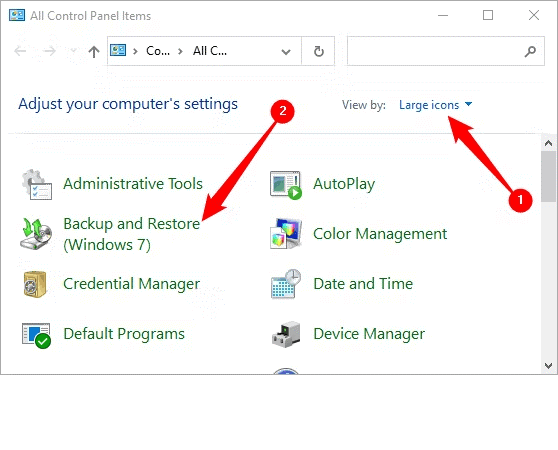
Windows systems are vulnerable to hardware failure, failed updates, and malware infections. When data is lost, online backup tools provide a structured recovery process.
Step-by-Step Recovery on Windows
- Open a web browser or installed backup application
- Sign in to your online backup account
- Navigate to the Restore or Recovery section
- Select the affected Windows device
- Browse backed-up folders such as Documents, Desktop, or Pictures
- Choose a restore date from before the data loss
- Select files and click Restore
Recovered files are either downloaded to the current system or restored to their original locations.
How Data Is Recovered on macOS Using Online Backup Tools
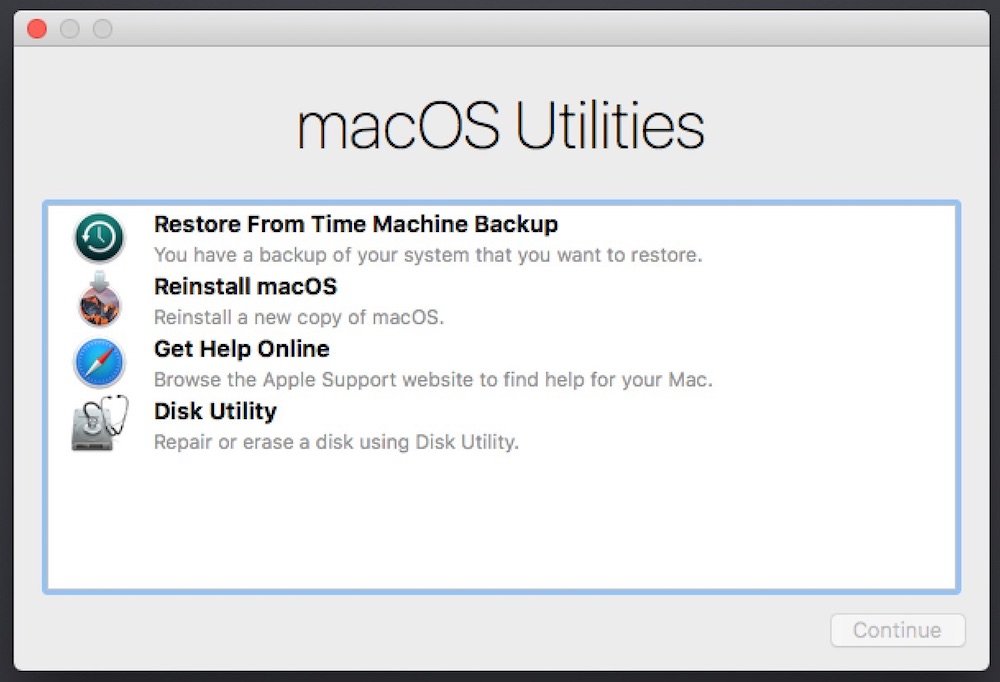
Mac users typically rely on cloud-based backup software alongside system recovery options.
Step-by-Step Recovery on macOS
- Open the backup application or web dashboard
- Sign in with your backup account
- Choose the Mac device from the list
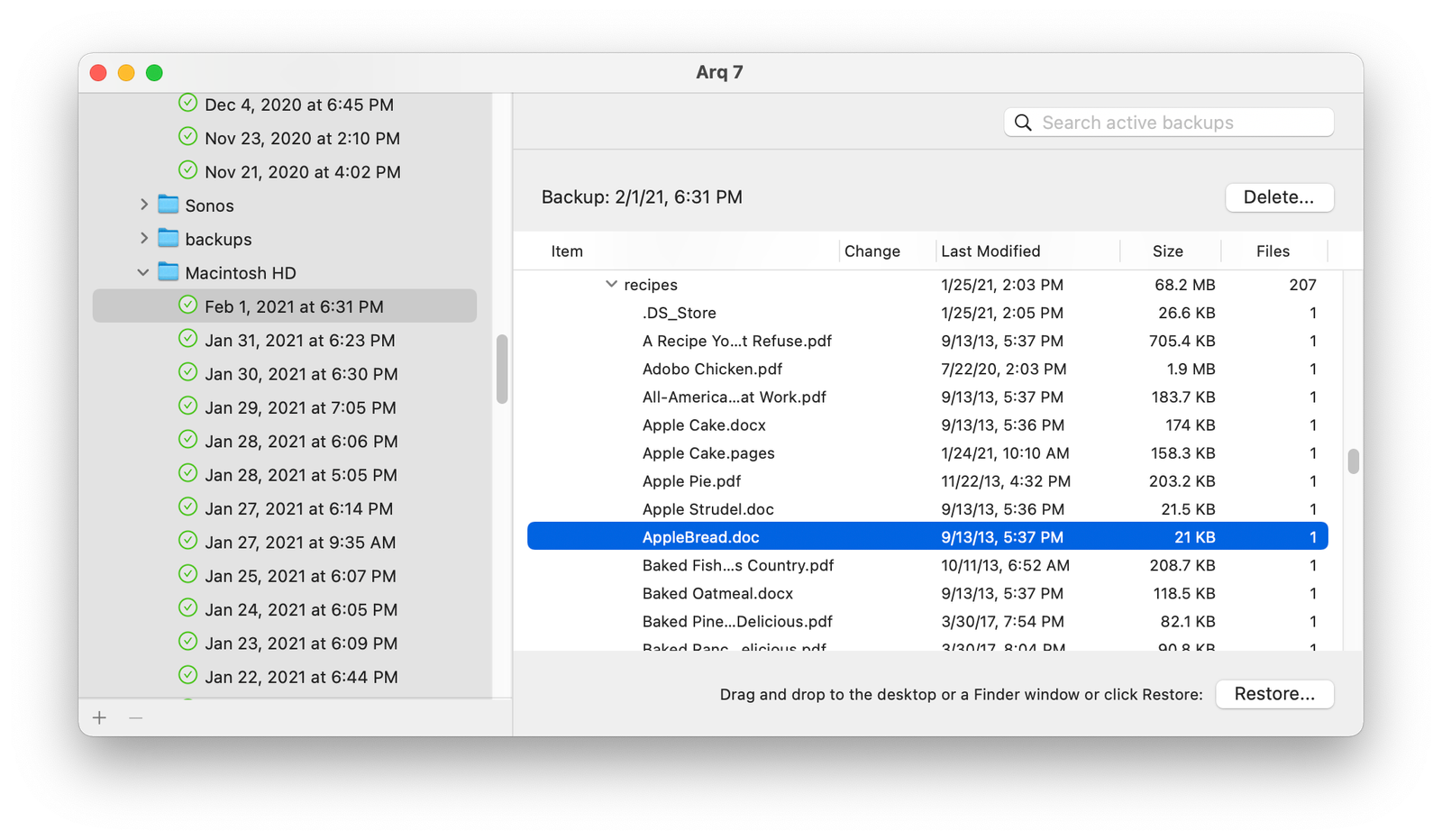
- Browse files by category or date
- Select the files you want to restore
- Restore files to:
- Original location, or
- A new folder for review
The restored files reappear instantly or download in the background.
Apple Inc.
How Data Is Recovered on iPhone Using Online Backup Tools
Mobile devices are especially vulnerable to loss, theft, and accidental resets. Online backups allow iPhone users to recover data even when the device itself is unavailable.
Step-by-Step Recovery on iPhone from an iCloud Backup
- Power on the device. If it has already been set up, all existing content must be erased before restoring from a backup.
- Follow the on-screen instructions to choose your language, region, and connect to a Wi-Fi or mobile network.
- Continue setup until the screen that offers data transfer options appears.
- Select the option to restore data from an online backup stored in iCloud.
- Enter the same Apple ID that was used when the backup was created. Backups are linked to the account, so using the correct ID is essential.
- Review the available backups and choose one based on date and size, preferably the most recent backup created before the data loss.
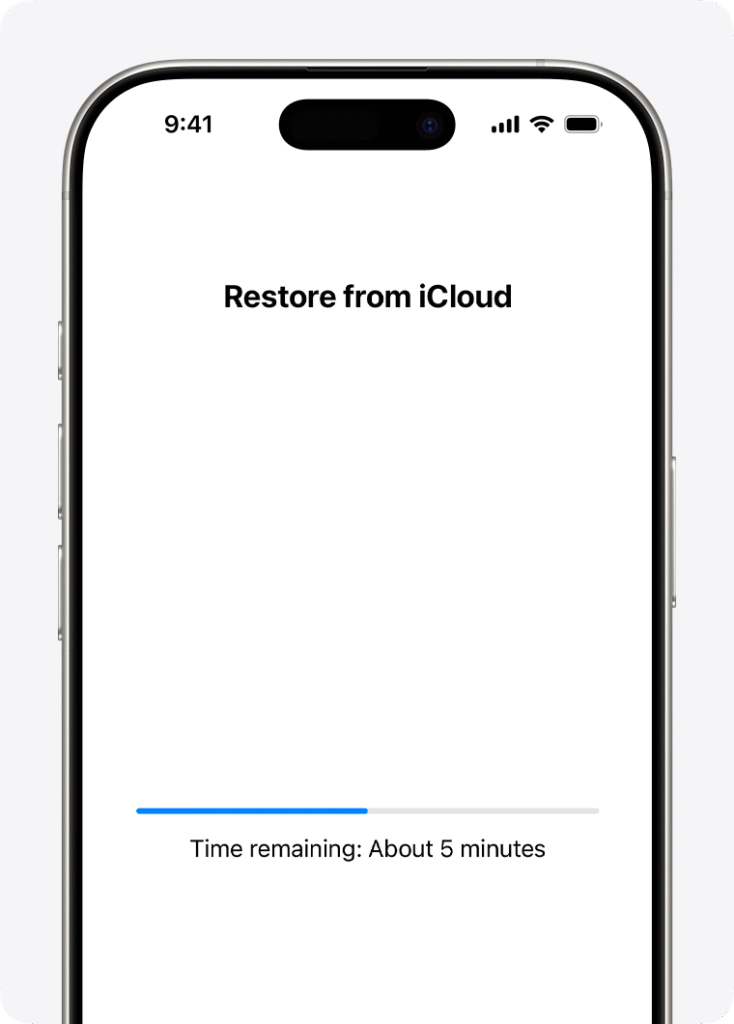
- The iPhone will start downloading apps, photos, messages, and settings. If a software update is required, follow the prompts to complete it.
- Keep the device connected to Wi-Fi and power. If the connection is interrupted, the process will pause and resume once connectivity is restored.
- The iPhone becomes usable once setup is complete, while remaining content continues restoring in the background. Depending on backup size and network speed, this may take several hours or longer.
Step-by-Step Recovery on iPhone from a Computer Backup
If the backup was stored on a computer, it can be restored using a Mac or Windows system.
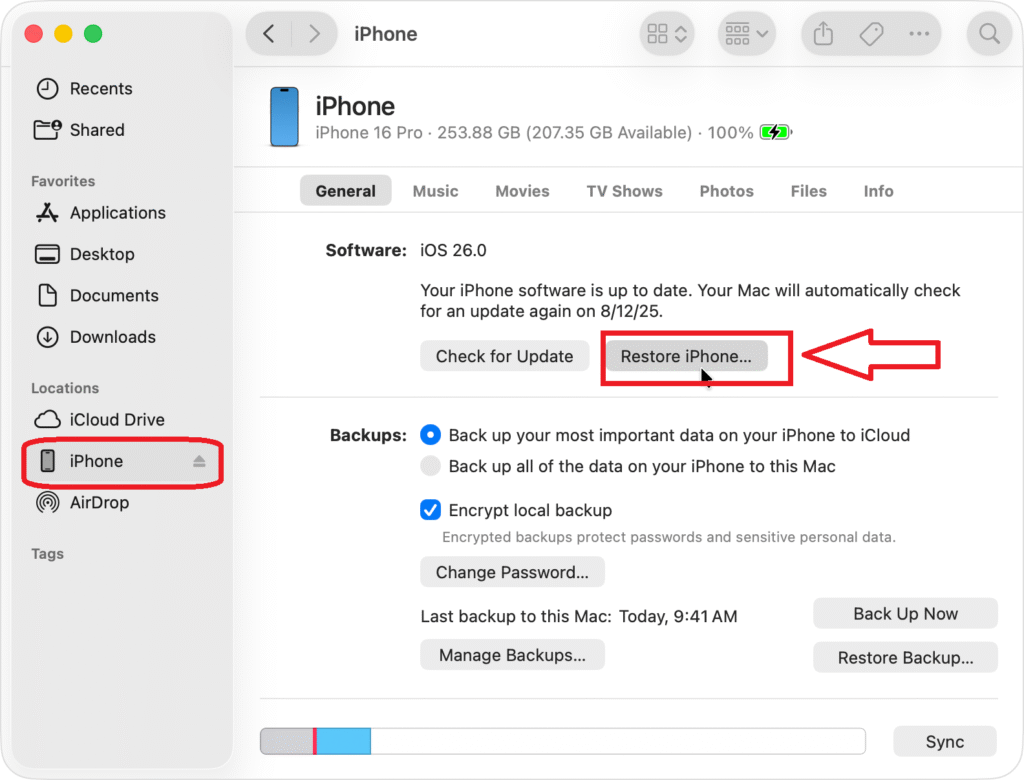
- On macOS, open Finder. On Windows, open the Apple Devices app or iTunes, depending on the system version.
- Use a USB cable to connect the device. If prompted, unlock the phone and approve the connection.
- Select the iPhone when it appears in the sidebar or device list.
- Click the option to restore from a backup. If the system requests a software update, follow the on-screen instructions.
- Review available backups by date and choose the one that best matches your recovery needs.
- If the backup is encrypted, enter the password to continue.
- Keep the iPhone connected until the restore finishes and the device restarts.
- After the restart, leave the device connected while files sync. The iPhone can be disconnected once syncing is complete.
How Online Backup Tools Protect Against Ransomware
Ransomware attacks encrypt files and demand payment for recovery. Online backup tools help reduce damage by maintaining clean, unaffected copies of files.
Many backup systems allow users to:
- Restore files from before the attack
- Avoid paying ransom
- Resume work quickly
Some tools even detect suspicious file changes and stop automatic syncing to prevent infected files from overwriting clean backups.
Why Automatic Backups Are More Reliable Than Manual Ones
Manual backups depend on user memory and discipline. They are often outdated or incomplete. Online backup tools eliminate this risk by running automatically.
Once configured, backups occur:
- On a schedule
- When files change
- Without user intervention
This ensures that recent data is protected even during unexpected failures.
Best Practices for Practical Data Recovery
To ensure backups remain useful:
- Enable automatic backups
- Use strong passwords and two-factor authentication
- Periodically test file restoration
- Combine online and local backups
These steps help ensure backups work when they are needed most.
Conclusion
Online backup tools protect data not by preventing failures, but by making recovery possible. Whether files are lost on Windows, macOS, or iPhone, these tools provide clear, structured ways to restore data after accidents, hardware failures, or cyberattacks.
In a world where data loss is often inevitable, online backup tools turn disasters into recoverable events. Their true value lies not in storage, but in the ability to bring lost data back when it matters most.